Google Services Setup via n8n
Table of contents
- Google Services Setup via n8n
Overview
Connect Gmail and Google Sheets to n8n using OAuth2 authentication. n8n handles the credential management - you just need to authenticate your Google account.
Time Required: 5 minutes
What You’re Connecting:
- Gmail (for sending/reading emails)
- Google Sheets (for data logging)
Step 1: Connect Gmail in n8n
1.1 Access Credentials Menu
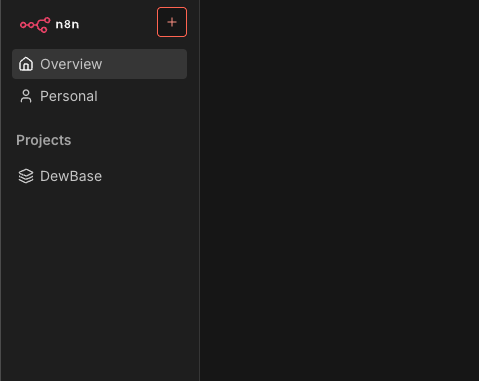
- In n8n, click the + button in the top-right corner
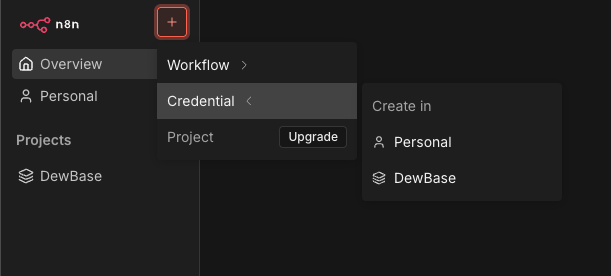
- Select Credential from the dropdown menu
1.2 Search for Gmail Credential
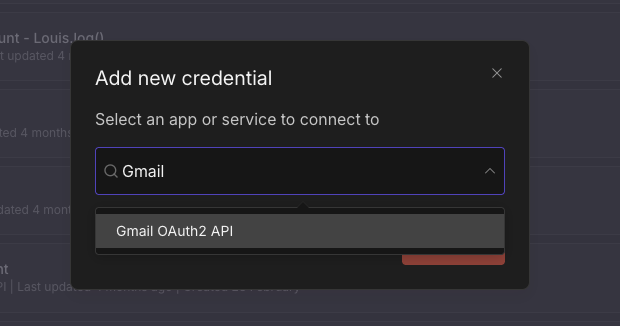
- In the “Add new credential” modal, type “Gmail” in the search box
- Select “Gmail OAuth2 API” from the results
1.3 Initiate OAuth Connection
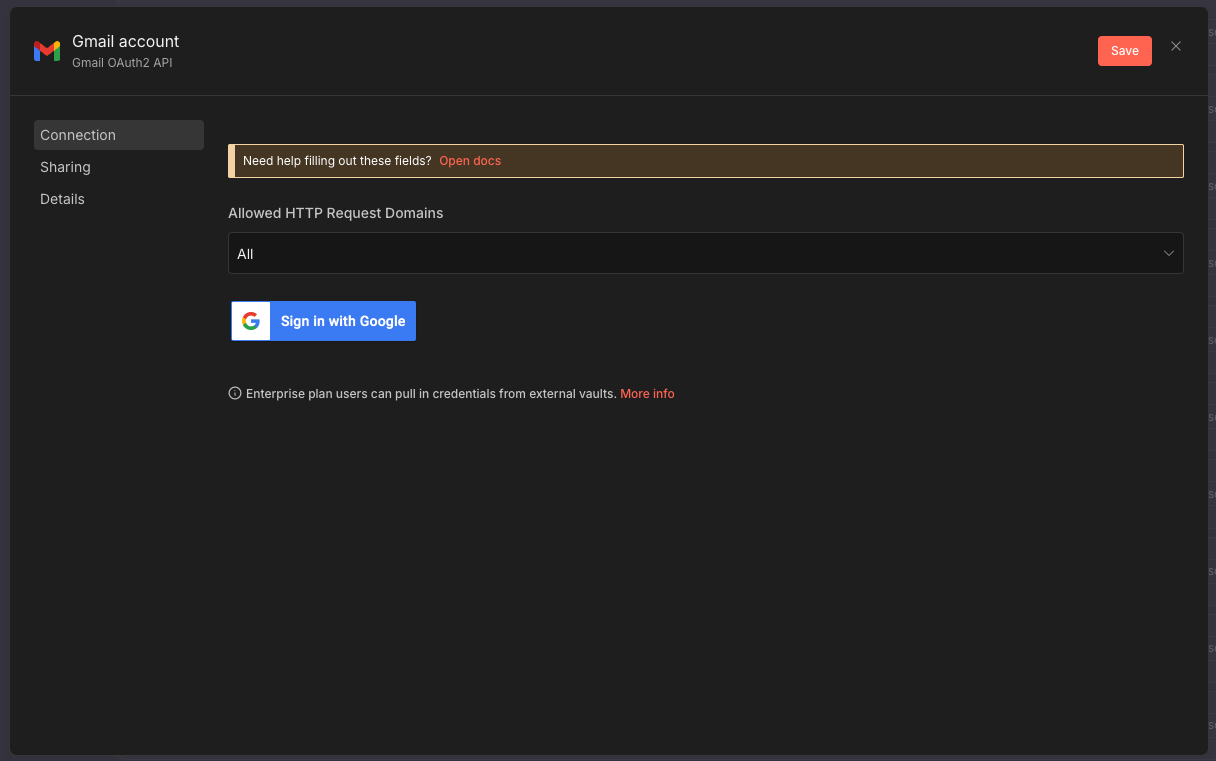
- In the Gmail account credential screen, click “Sign in with Google”
1.4 Grant Permissions
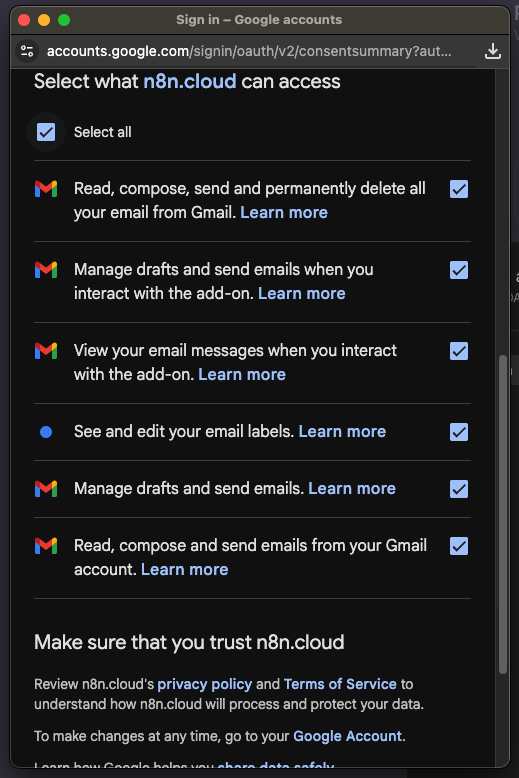
- A Google consent screen will appear. Review the permissions:
- Read, compose, send and permanently delete all your email from Gmail
- Manage drafts and send emails when you interact with the add-on
- View your email messages when you interact with the add-on
- See and edit your email labels
- Manage drafts and send emails
- Read, compose and send emails from your Gmail account
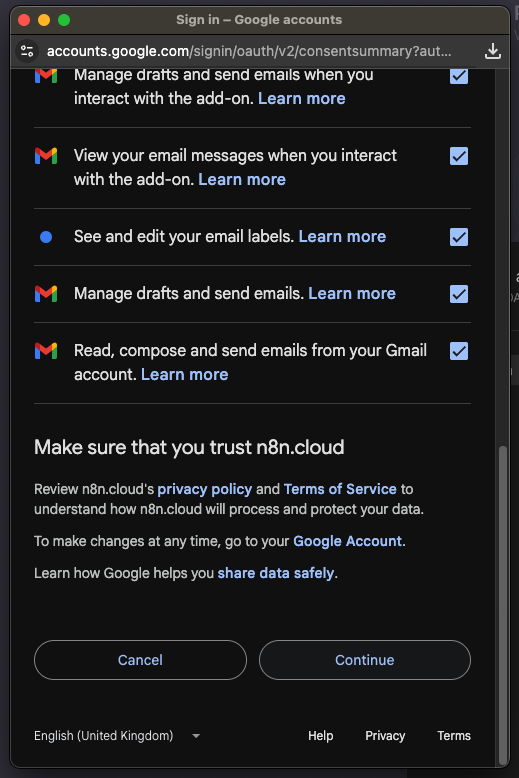
- Scroll down and click “Continue”
First-time setup: Google may show a warning that the app isn’t verified. Click “Advanced” → “Go to n8n (unsafe)” → “Allow”. This is normal for OAuth apps in development mode.
1.5 Verify Connection
- You should see “Account connected” in green, indicating successful authentication
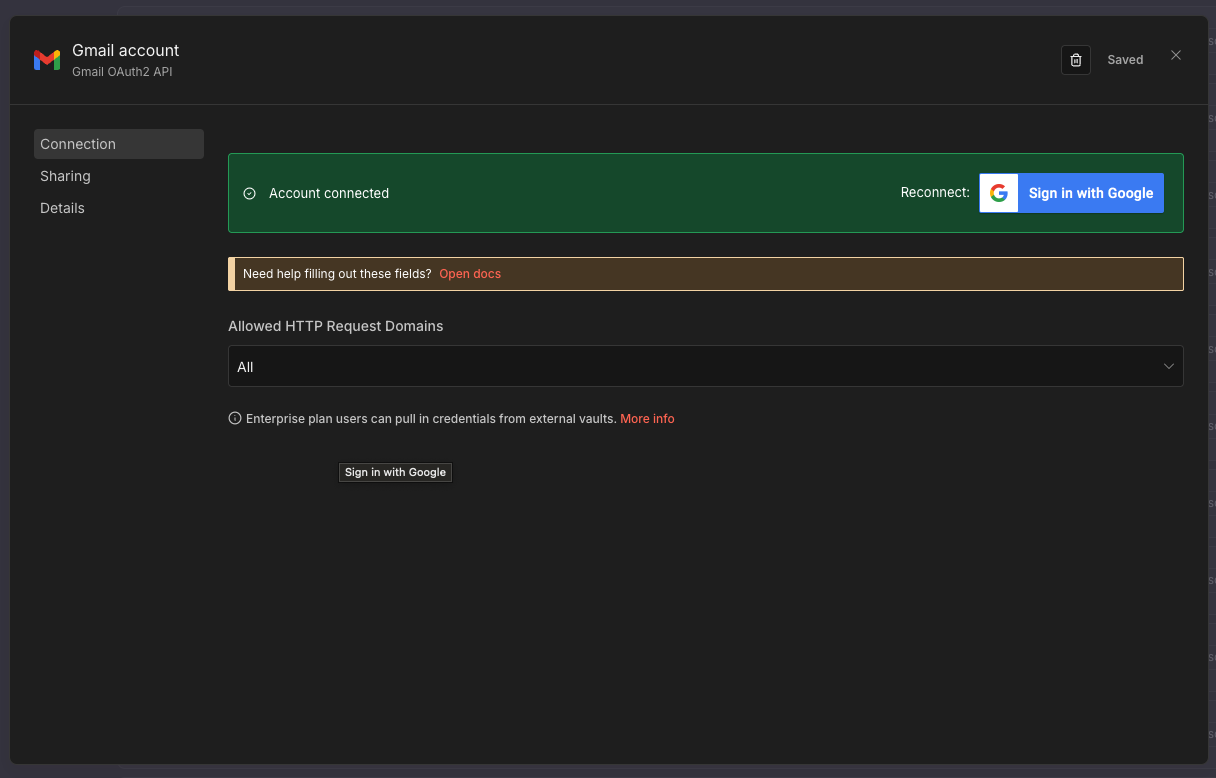
- Click “Save” to store the credential
Success: Your Gmail credential is now ready to use in any workflow!
Step 2: Connect Google Sheets in n8n
2.1 Access Credentials Menu
- In n8n, click the + button in the top-right corner
- Select Credential from the dropdown menu
2.2 Search for Google Sheets Credential
- In the “Add new credential” modal, type “Google Sheets” in the search box
- Select “Google Sheets OAuth2 API” from the results
2.3 Initiate OAuth Connection
- In the Google Sheets account credential screen, click “Sign in with Google”
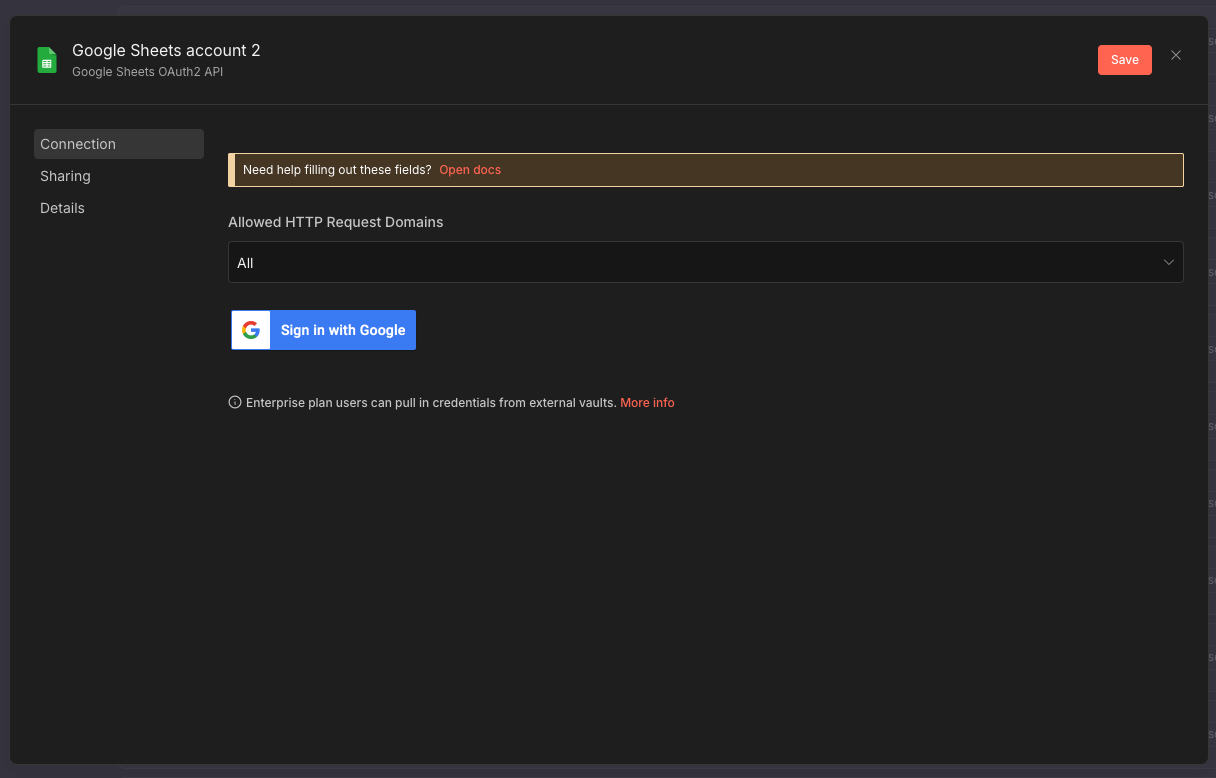
2.4 Grant Permissions
- A Google consent screen will appear. Review the permissions:
- View and manage metadata of files in your Google Drive
- See, edit, create and delete only the specific Google Drive files that you use with this app
- See, edit, create and delete all your Google Sheets spreadsheets
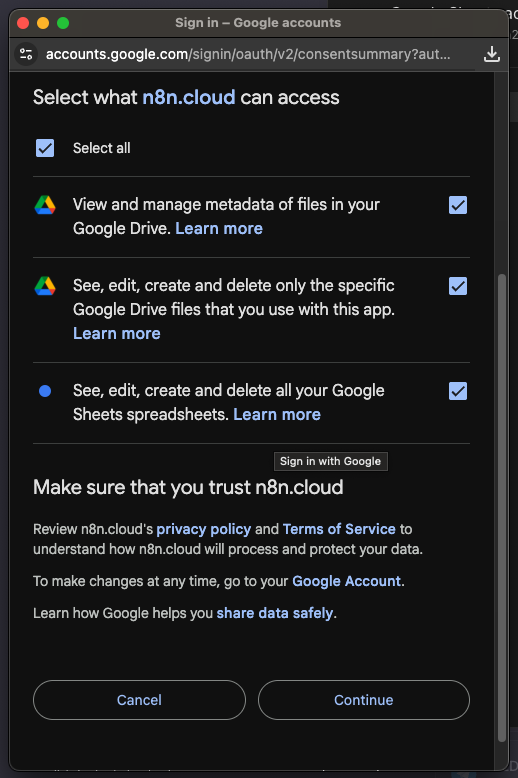
- Scroll down and click “Continue”
Drive permissions: Google Sheets requires Drive API access to create and manage spreadsheet files.
2.5 Verify Connection
- You should see “Account connected” in green, indicating successful authentication
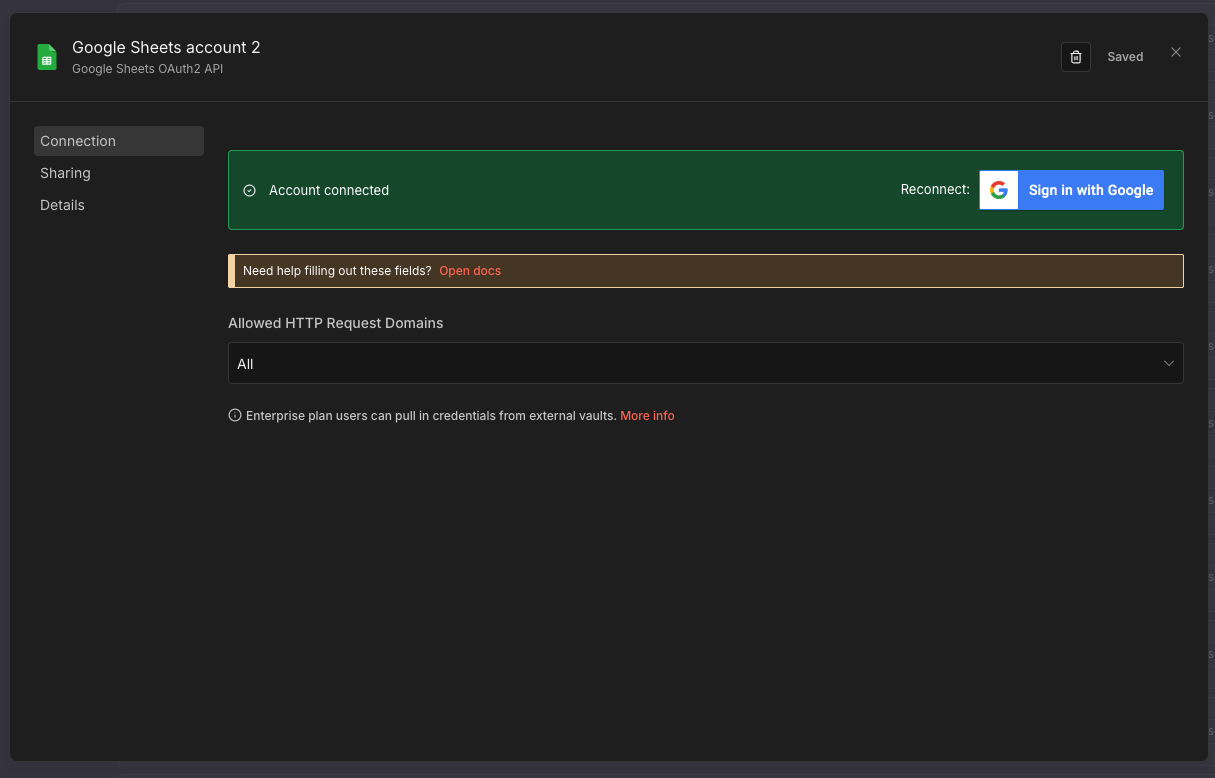
- Click “Save” to store the credential
Success: Your Google Sheets credential is now ready to use in any workflow!
Troubleshooting
“This app isn’t verified” Warning
When connecting for the first time, Google may show a security warning:
- Click “Advanced” at the bottom left
- Click “Go to n8n (unsafe)”
- Review permissions and click “Allow”
This is expected: Apps in development mode show this warning. Your credentials are safe - n8n uses industry-standard OAuth2.
“Access blocked” Error
If you see “Access blocked: n8n has not completed the Google verification process”:
Solution: Use a different Google account that isn’t managed by a Workspace admin, or contact your workspace administrator to allow n8n.
Connection Expires
OAuth tokens may expire. If you see authentication errors:
- Go to Credentials in n8n
- Find your Gmail/Sheets credential
- Click “Reconnect”
- Re-authenticate with Google
What You’ve Accomplished
✅ Connected Gmail to n8n via OAuth2 ✅ Connected Google Sheets to n8n via OAuth2 ✅ Ready to use Gmail and Sheets nodes in any workflow